Pages

Thursday, April 28, 2022

Tạo file .pfx để import vào IIS

Thông thường khi đăng ký chứng chỉ SSL, bạn sẽ nhận được các file như: domain.key, domain.crt… Tuy nhiên trên Windows sẽ không thể add các chứng thực trên vào vì không hỗ trợ các định dạng trên. Vì vậy cần convert qua định dạng windows hỗ trợ là PFX. Ta có thể sử dụng tool trung gian để convert các định dạng trên sang PFX.

Để tạo ra file pfx trên windows cần truy cập link https://www.ssl

Tuesday, April 26, 2022

Sửa lỗi vcruntime140_1.dll

Sửa lỗi vcruntime140_1.dll

https://docs.microsoft.com/en-US/cpp/windows/latest-supported-vc-redist?view=msvc-170

Thursday, March 31, 2022

How to Enable or Disable SMBv2 in Windows 11/10.

How to Enable or Disable SMBv2 in Windows 11/10.

- Dùng PowerShell quyền Admin, chạy 3 lệnh bên dưới.
Commands Used:

1. Kiểm tra trạng thái SMB hiện tại Get-SmbServerConfiguration | Select EnableSMB2Protocol

2. Bật SMB Set-SmbServerConfiguration -EnableSMB2Protocol $true

3. Tắt SMB
Set-SmbServerConfiguration -EnableSMB2Protocol $false

Monday, March 21, 2022

Tìm kiếm 01 email gửi từ 01 IP

Tìm kiếm 01 email gửi từ 01 IP

Get-TransportService | ForEach-Object {Get-MessageTrackingLog -Server $_.Name -MessageSubject "Quota warning" -Start (Get-Date).AddDays(-1) -EventId Submit } | Select-Object -Property Sender,OriginalClientIp

Friday, March 18, 2022

Khắc phục lỗi 0x0000011b khi kết nối máy in qua Printer Server

Chỉnh trên Printer Server, trường hợp không dùng Printer Server thì chỉnh trên máy Client


Vào Registry để khách phục lỗi error 0x0000011b

Với cách số 2 này bạn không cần gỡ bản cập nhật (KB5005565). Tiến hành theo các bước như sau.

Bạn nhấn Phím Windows + R mở hộp thoại Run tiếp theo nhập Regedit nhấn phím Enterđể mở Registry Editor.

Tìm đến khóa theo đường dẫn: HKEY_LOCAL_MACHINE\System\CurrentControlSet\Control\Print

Bạn tạo một giá trị DWORD-32bit mới có tên RpcAuthnLevelPrivacyEnabled và đặt giá trị của nó là giống như ảnh bạn có thể thấy bên dưới:

Tuesday, February 22, 2022

Components code and abbreviation on Laptop motherboard

Components code and abbreviation on Laptop motherboard

COMPONENTS CODE

CODE COMPONENT
C :CAPACITOR
IODE
F :FUSE
L :INDUCTOR
PC :POWER CAPACITOR
PD :POWER DIODES/DIODE
PL :POWER INDUCTOR
PQ :POWER TRANSISTOR
PR :POWER RESISTOR
PU :POWER INTEGRATED CIRCUIT
Q :TRANSISTOR
R :RESISTOR
T : Transformers
U :INTEGRATED CIRCUIT/BGA CHIP/EMBEDDED CONTROLER/BIOS IC,ETC
X : Terminal strips, terminations, joins .oscilator
Y : Crystal

Thursday, January 20, 2022

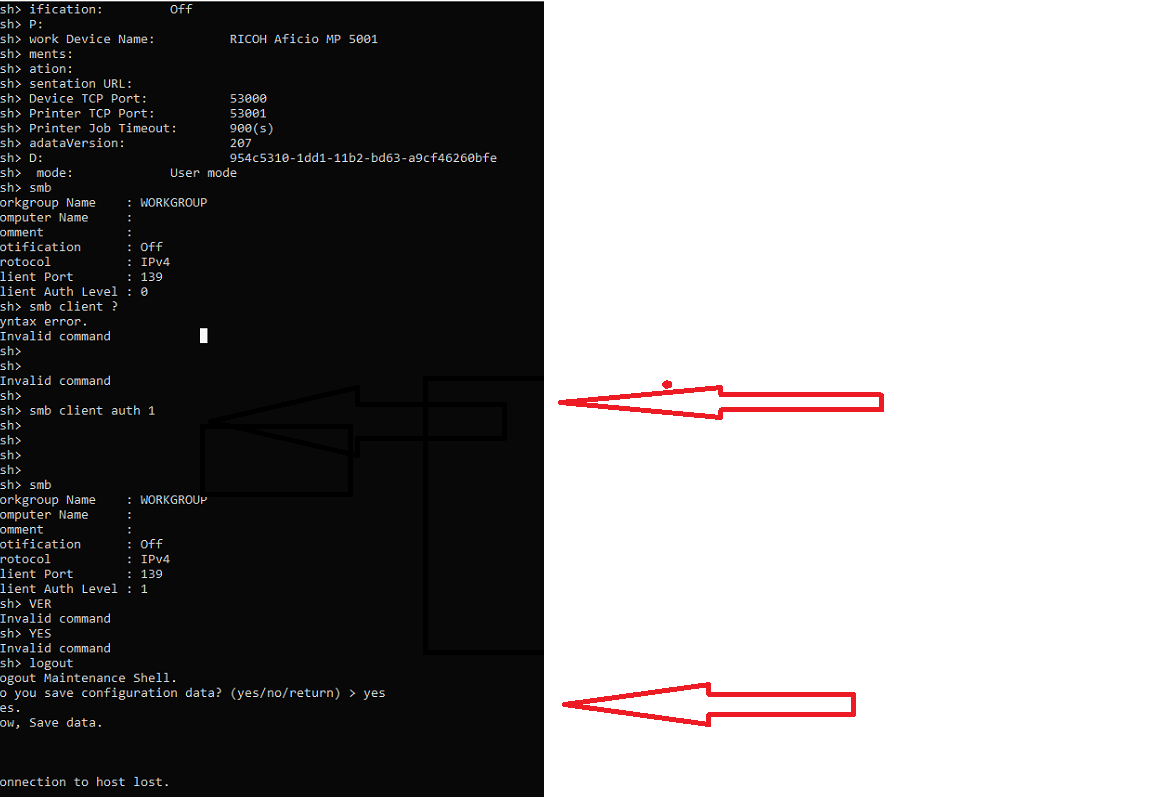
Sửa lỗi các máy Photocopy không scan được qua NAS khi upgrade lên version 7

Sửa lỗi các máy Photocopy không scan được qua NAS khi upgrade lên version 7.


1. Telet vào máy photocopy

2. Kiểm tra smb client

Command: Show để kiểm tra  tình trạng SMB hiện tại

3. Chỉnh smb client auth 0 --> 1

command: smb client auth 1

4. Bấm logout press enter

chọn "yes"  để lưu cấu hình


Khởi động lại máy Photocopy

Thursday, January 6, 2022

Remote Desktop Services on Server 2012R2 Role Fail

RDVH is based on Hyper-v so you need to install this role first. if you are running  ESXi and your Server is inside a VM, you need to enable VMware  nesting on your Virtual machine which is disable by default in order to be able to install Hyper-V on your VM. What you need to do is adding a couple of line of configuration in VMX file in your VM's file in appropriate ESXi DataStore. to do that, shutdown your machine, delete it from ESXi inventory, browse your data store  which contains your vm's files, locate vmx file of your vm, download it to your desktop, open it with wordpad and add these to lines to the end: 

vhv.enable = "TRUE"

hypervisor.cpuid.v0 = "FALSE"

save the file and put it back to the same location of  datastore you downloaded before. then put back youre vm to the ESXi inventory and you are ready to go. power on your vm and you will see that you are able to install Hyper-V roll on your machine.

Thursday, February 25, 2021

Trình duyệt hỗ trợ chạy Flash

Trình duyệt hỗ trợ chạy Flash.

https://www.maxthon.com/?lang

Tuesday, January 5, 2021

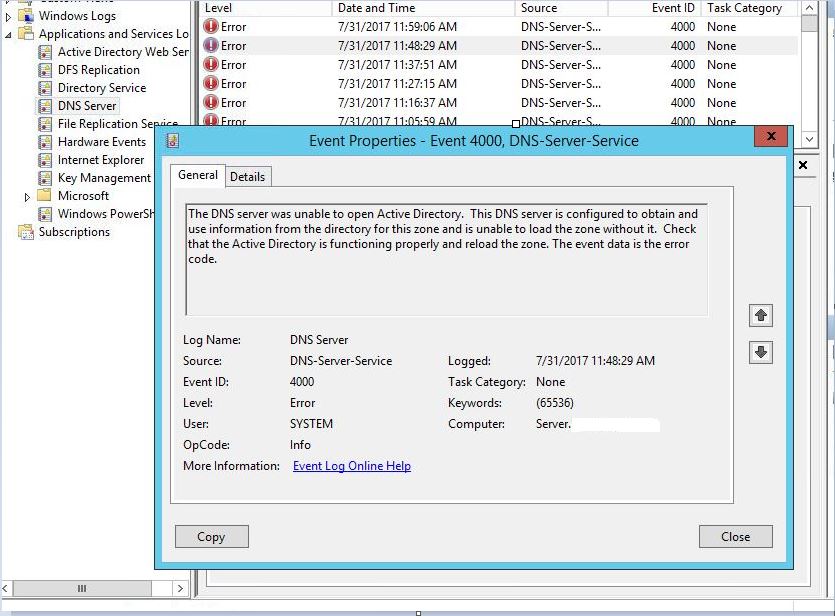
The DNS server was unable to open Active Directory event id 4000

THE DNS SERVER WAS UNABLE TO OPEN ACTIVE DIRECTORY EVENT ID 4000

The DNS server was unable to open Active Directory event id 4000

FIX

Run AS administrator to CMD the server Active Directory and change domain.LOCAL and change Domain\domain_admin

netdom resetpwd /server:<PDC.yshvili.local> /userd:<yshvili\administrator> /passwordd:*

-It will prompt for the password of the Domain Admin account that you used, enter that.
-Once the command executes, reboot the server.
-DNS zones should load now.
-Exchange services should be started.